
Homestyler has newly launched the parametric pool feature. Through parametric pool components and visual parameter adjustment, you can quickly create and modify the pool body, Pool Entry Stairs, Shallow Water Platform, and Swimming Pool Ladder, reducing modeling work and improving pool-building efficiency.

Feature Entry
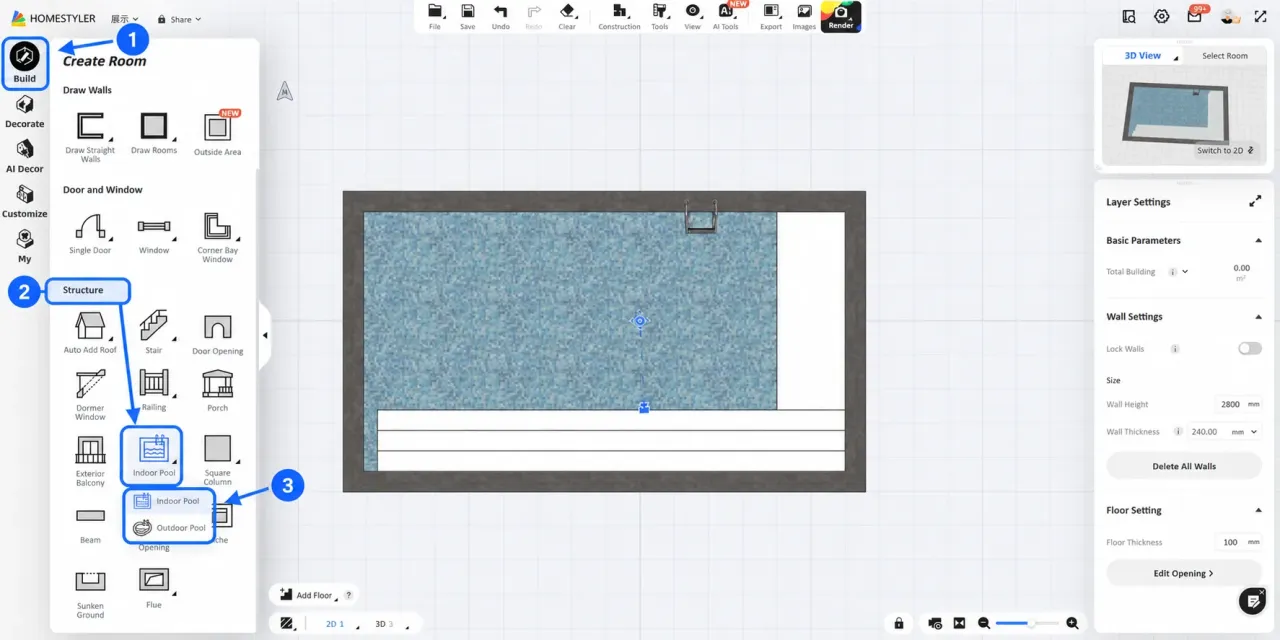
In the left resource bar, find Build > Structure > Indoor Pool. Hover the mouse over the pool icon to choose:
- Indoor Pool: supports selecting the floor for placement.
- Outdoor Pool: can only be created on 1F, suitable for outdoor areas such as courtyards and terraces.
Create and Adjust a Parametric Pool
In the 2D view, select the drawing tool to draw the pool outline. While drawing, you can enter the edge length in the input box (press the Tab key to switch the input box). After the outline is closed, the system automatically generates a parametric pool model.
After creation is completed, you can drag the pool component, edges, or vertices in the 2D view to adjust the position and outline of the pool.
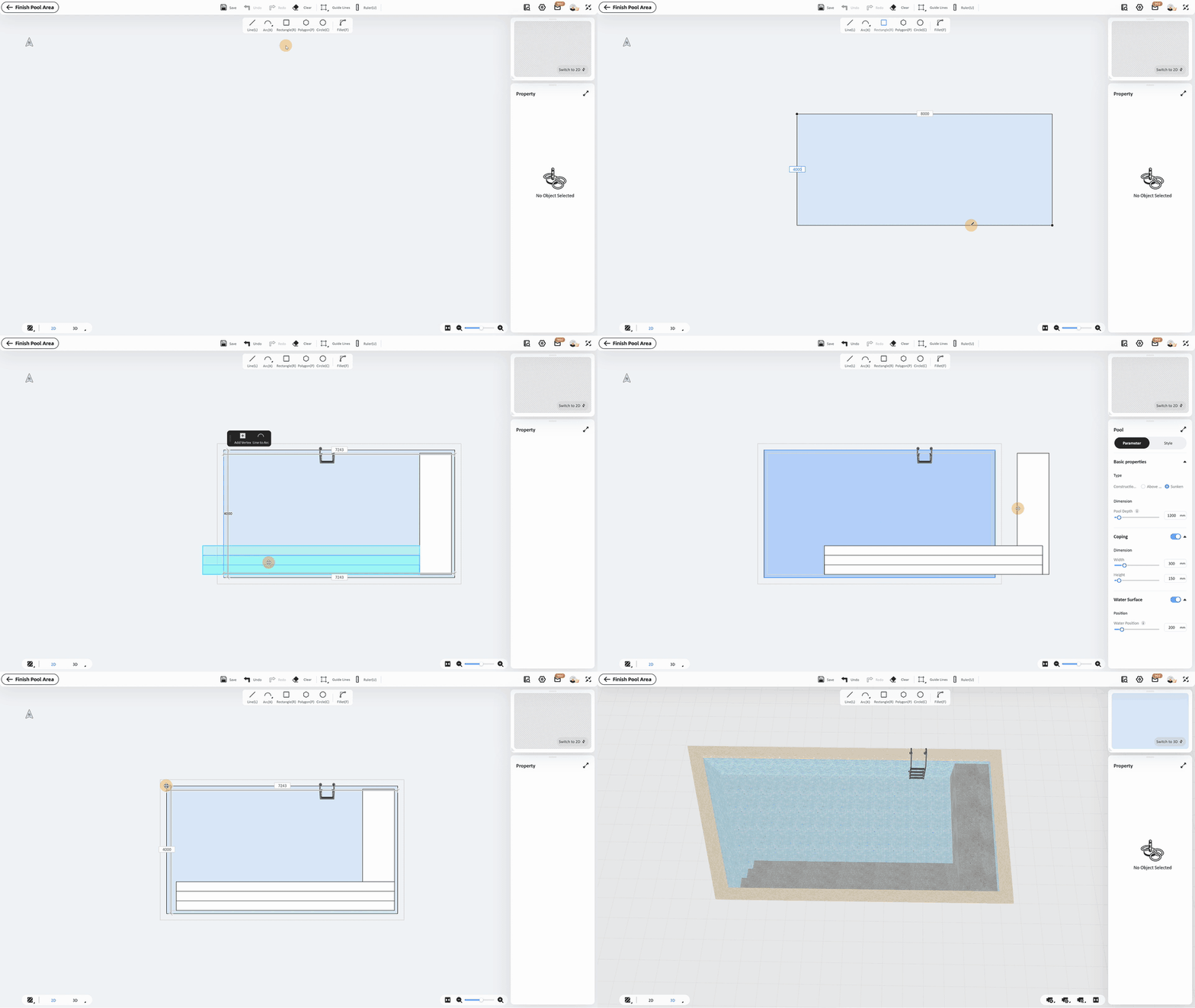
Notes: When generating a pool, the outline must be closed and the boundaries must not intersect. The length and width must not exceed 100 m, the depth must not exceed 20 m, the area must not be less than 1 m², and the shortest edge must not be less than 0.5 m.
Edit Pool Parameters, Components, and Materials
A parametric pool consists of 4 components: the pool body, Pool Entry Stairs, Shallow Water Platform, and Swimming Pool Ladder. After creation is completed, select the pool or component in the 3D view and edit it in the right-side properties panel.
Pool Body Parameters
Adjust in Parameter Settings:
- Above Ground: the entire pool body is located above the ground or floor, and the outside of the pool wall is visible, suitable for scenes such as elevated pools and terrace pools.
- Sunken: the pool body is embedded into the ground or floor, and the pool opening connects with the surrounding ground or coping, suitable for scenes such as courtyard pools.
- Pool Depth: sets the overall depth of the pool.
- Coping: after turning it on, you can set the width and height of the pool coping.
- Water Surface: after turning it on, you can adjust the vertical height from the water surface to the top of the pool. The larger the value, the lower the water level.

Component Parameters
Pool Entry Stairs
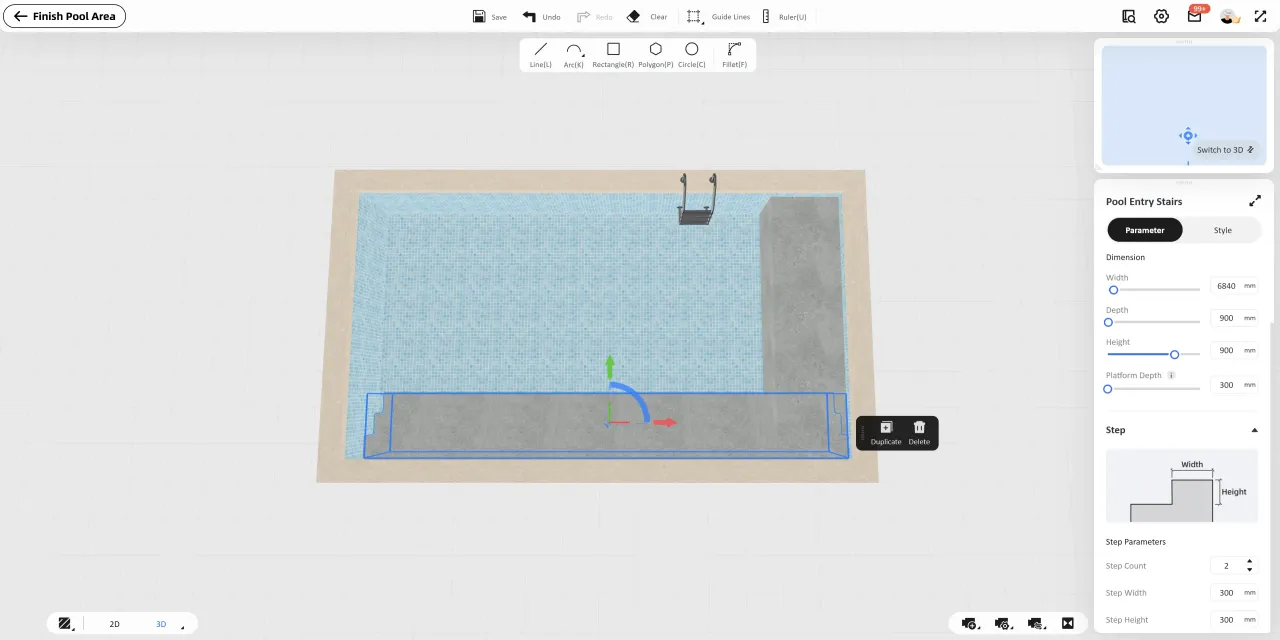
Select the Pool Entry Stairs, and you can directly drag or rotate the component to adjust the position. In the right-side panel, set the step shape, size, platform depth, and step parameters.
Among them, platform depth is used to control the depth of the top platform; step parameters are used to adjust the size of each step.
Shallow Water Platform / Swimming Pool Ladder
After selecting the Shallow Water Platform or Swimming Pool Ladder, you can drag or rotate the component to adjust its position and direction, and set the platform shape, size, depth, as well as ladder size, ground clearance, and rotation angle respectively in the right-side panel.
Modify Pool Materials
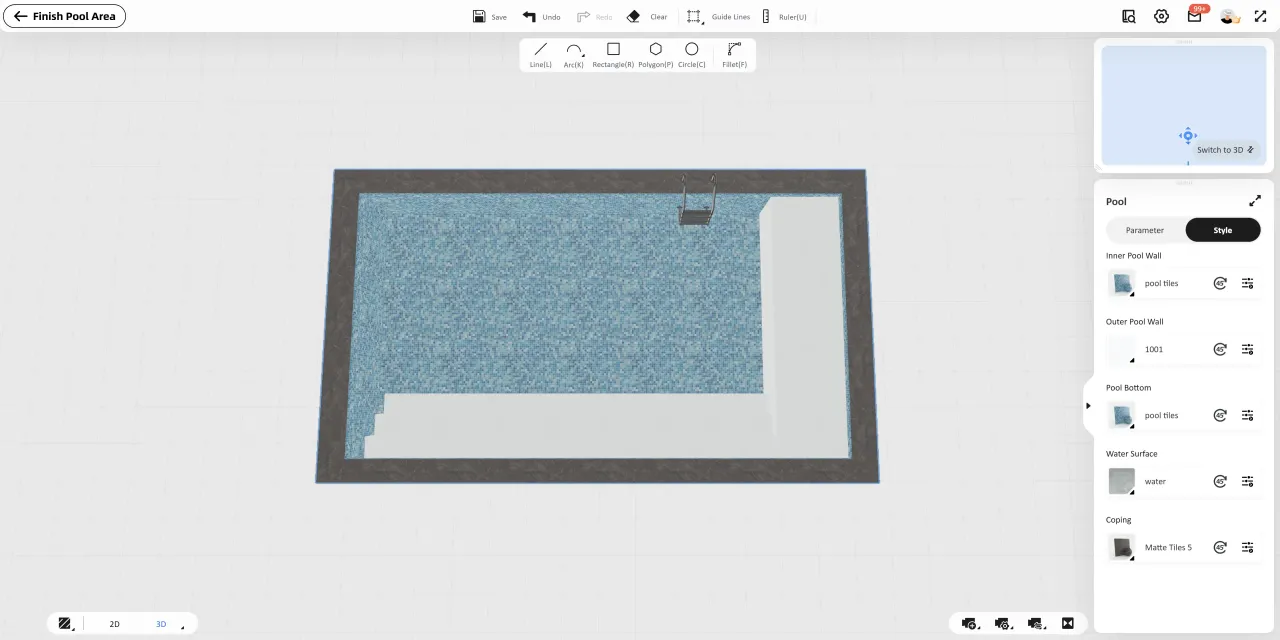
Select the pool body, and switch to Style Settings in the right-side properties panel to adjust the materials of the inner pool wall, outer pool wall, pool bottom, water surface, and coping.
After selecting the Shallow Water Platform or Swimming Pool Ladder, you can modify the material of the corresponding component in Style Settings.
In the material card:
- Click Rotate to adjust the texture direction.
- Click Adjust to adjust material offset, scaling, etc.
Editing Tips
Create curved or irregular-shaped pools
First use the Line (L) tool to draw the basic outline, and generate the pool after closing it; when a rounded-corner effect is needed, you can combine it with the Fillet (F) tool to process the corners.
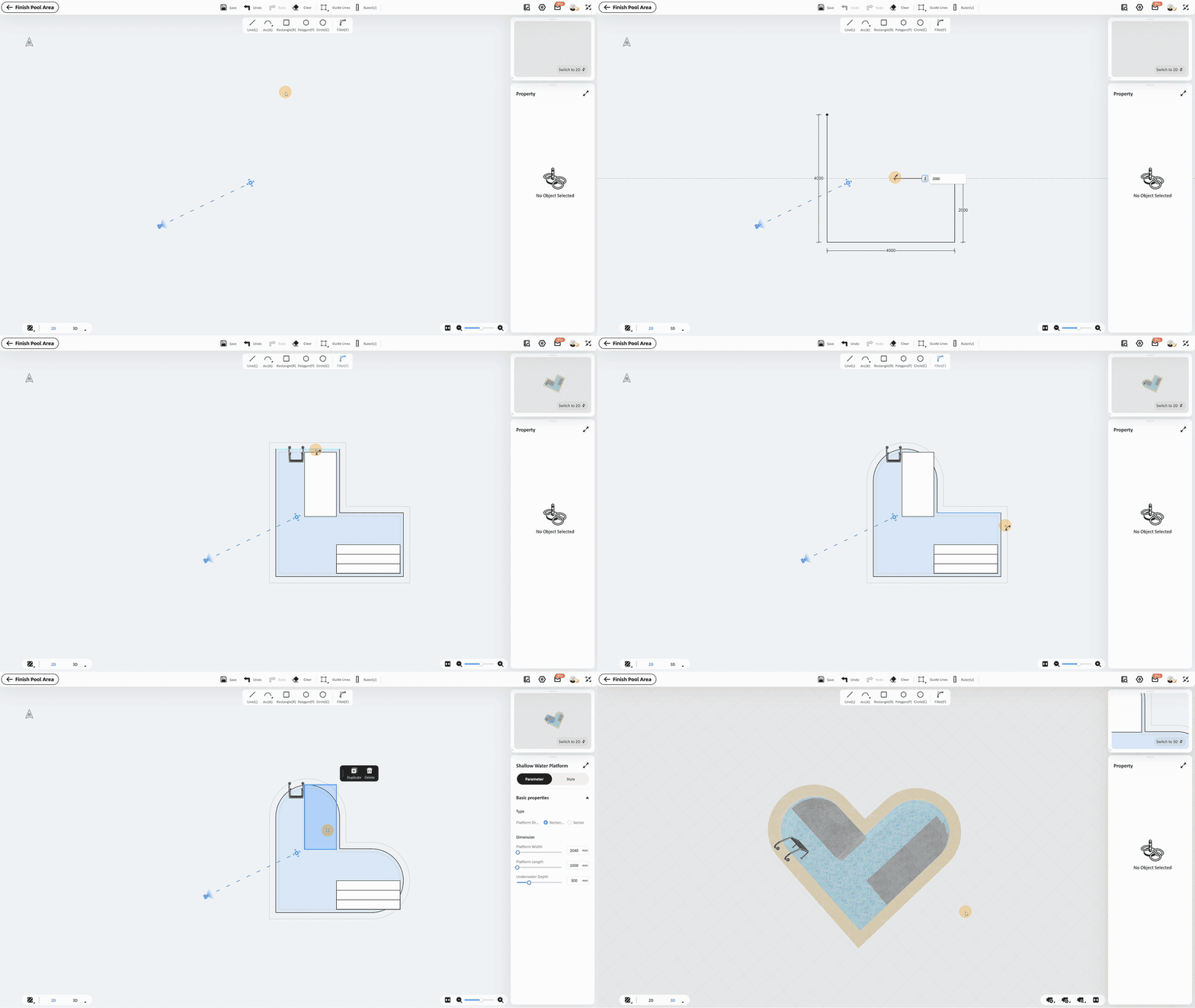
How to retrieve the steps or ladder
Open Decorate > Structure > Stairs in the left catalog, find Pool Step Platform or Pool Ladder, and drag the component into the inside of the pool. The system will automatically snap it into the pool body.


