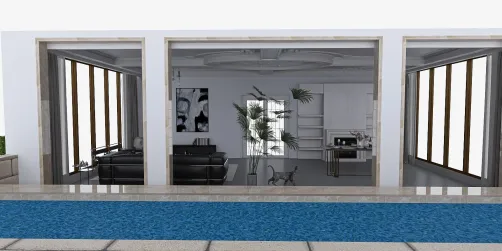
Importing 3D models into After Effects can take your animations to the next level, creating stunning visual effects that captivate your audience. If you are interested in mastering the process of bringing a 3D model into After Effects, this detailed guide will walk you through the essential steps needed to do so.
Step 1: Prepare Your 3D Model
Before you begin the import process into After Effects, it's vital to ensure that your 3D model is saved in a compatible format, such as OBJ or FBX. It's also wise to streamline your model by eliminating unnecessary details that could complicate the importing process. Properly preparing your model can lead to a more effective workflow in After Effects.
Step 2: Utilize Cinema 4D Lite or Third-Party Plugins
While After Effects doesn’t support direct imports of 3D models, you can leverage integration capabilities through plugins. Consider using Cinema 4D Lite, included with After Effects, to build your 3D scene. Alternatively, explore third-party solutions like Element 3D, which offer powerful functionalities for managing 3D models within After Effects.
Step 3: Import the Model into After Effects
After your model is meticulously prepared, launch After Effects and create a new project. From there, you’ll import your Cinema 4D project file or make use of tools provided by your chosen plugin. Adjust the settings as necessary to ensure your model integrates smoothly into the After Effects environment.
Step 4: Animate and Render Your 3D Model
With your 3D model successfully imported, you can start the animation process. Take advantage of After Effects' keyframe settings and rendering options to animate your model effectively. Experiment with different lighting, camera perspectives, and effects to elevate your visuals. Remember to render your final project for a preview before exporting your animation for further use.
Tips for Optimizing Performance
Working with 3D models can be resource-intensive. Here are some key tips to optimize performance: 1. Simplify your models to reduce polygon counts. 2. Use proxy files to enable smoother editing. 3. Close any unnecessary applications while using After Effects to allocate vital resources for peak performance.
FAQ
Q: Which file formats does After Effects support for 3D models? A: After Effects can handle OBJ and FBX file formats when utilizing compatible plugins or software.
Q: Is it possible to animate 3D models within After Effects? A: Absolutely! You can animate imported 3D models using keyframes and the animation tools available in After Effects, as well as leveraging design tools like Homestyler for model visualization.


Discover your design potential with Homestyler! This user-friendly platform offers an intuitive online design tool, stunning 3D renderings, a plethora of interior design projects, and DIY video tutorials. It's perfect for anyone looking to creatively transform their home, regardless of experience.