
Incorporating a 3D model into Google Earth can greatly enhance your design ventures by enabling you to visualize your projects in a realistic setting. Regardless of whether you’re an architect, designer, or an enthusiastic hobbyist, this detailed guide will walk you through each step of the process, ensuring a smooth journey towards successful integration with Homestyler.
Exploring the Core Features of Google Earth
Google Earth is renowned for its advanced capabilities, providing a virtual globe that allows users to navigate and explore satellite imagery of our planet. To effectively import 3D models, it's crucial to understand the supported file formats, primarily the .DAE (Collada) format. Additionally, optimizing your models in terms of file size and detail is vital for seamless integration into the software.
A Comprehensive Guide to Importing 3D Models into Google Earth
Here’s a step-by-step guide to help you successfully import your 3D model into Google Earth:
Firstly, ensure your model is in the .DAE format. If your model is saved in other formats like .OBJ or .FBX, you’ll need to convert it to .DAE. Tools such as Blender or Autodesk can assist you efficiently in completing this conversion.
Once your model is ready, open Google Earth and pinpoint the exact geographical location where you'd like to position your 3D model. Zooming in closely is essential for accurate placement in its intended context.
In Google Earth, access the ‘File’ menu and choose ‘Import’. Locate your prepared .DAE file and select it. You might need to make adjustments to ensure accurate positioning in the designated area.
Advice for a Successful Import Process
1. Make sure your model is properly scaled to mirror realistic dimensions within the real world.
2. Test various levels of detail and polygon counts to achieve optimal performance while maintaining visual appeal.
3. Be mindful of your model’s compatibility with various devices, as performance in Google Earth can differ between desktop and mobile versions.
Frequently Asked Questions
Q: What file formats are acceptable for importing into Google Earth? A: The main format for importing 3D models into Google Earth is .DAE (Collada).
Q: Are there limitations on the size of models in Google Earth? A: Indeed, it’s recommended to keep your models below a certain polygon count to ensure responsive performance.
Q: Can I modify my model after it’s been imported? A: No, once your model is imported, edits cannot be made within Google Earth. Any modifications should be completed in your 3D modeling software before re-importing the updated model.
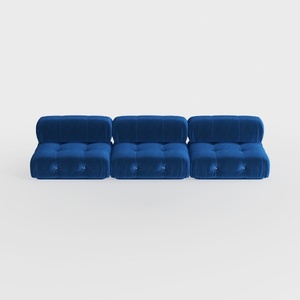

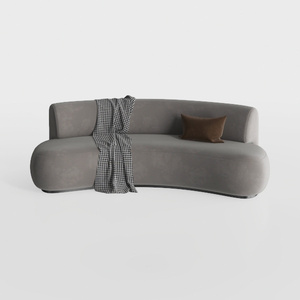
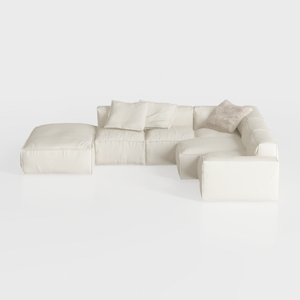
Discover your inner designer with Homestyler! This online platform offers a user-friendly design tool, stunning 3D renderings, and a wealth of DIY video tutorials. Whether you're redesigning a room or exploring new decor ideas, Homestyler empowers you to create beautiful spaces effortlessly.