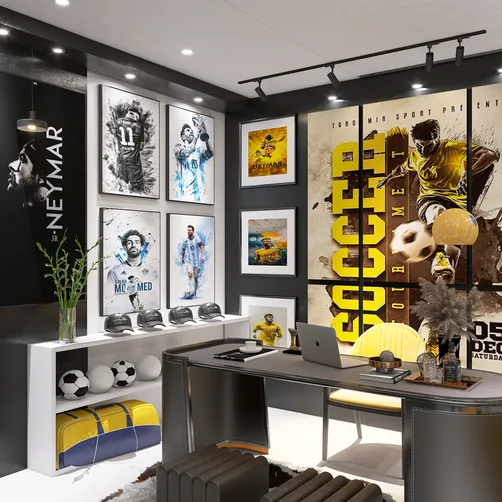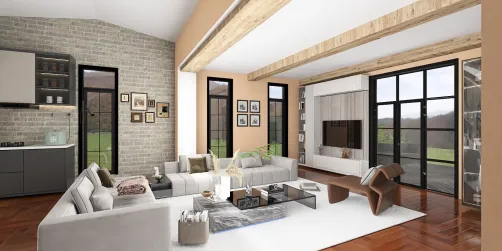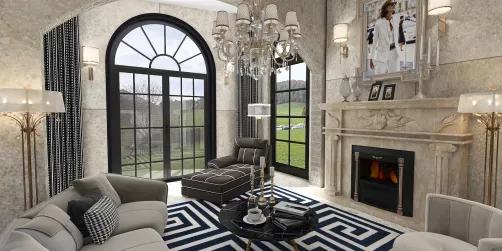
Transforming a two-dimensional image into a captivating 3D model using Blender can appear daunting at first. However, with the correct approach, you can bring your creative vision to life as a stunning three-dimensional object. To begin, ensure you have a high-quality source image at your disposal. This image should clearly depict the object you intend to model. To import the image into Blender, navigate to the 3D Viewport, select Add > Image > Reference. This initial reference will serve as a crucial guide throughout the modeling journey.
After successfully importing your image, the next step is to introduce a mesh that corresponds to the outline of your object. Starting with a Cube or Cylinder typically suits most projects well. In Edit Mode, you can adjust the vertices, edges, and faces to align with the shape of your reference. If your object possesses symmetrical properties, consider utilizing the Mirror Modifier to streamline the process—allowing you to model just one half. Once the primary shape is established, shift your focus toward adding detail through sculpting or employing modifiers like Subdivision Surface to enhance the smoothness of your model.
Comprehending the Essentials of 3D Modeling with Blender
Having defined your model's shape, it's essential to incorporate textures. You have the option to craft your own textures or select image textures that align with the colors in your reference image. While in Edit Mode, mark seams and unwrap your model to facilitate efficient texturing. Use Blender's UV Mapping feature to seamlessly apply these textures. Additionally, consider the arrangement of lights and the camera, as these factors substantially affect the outcome of your final render. Tweaking these elements will accentuate your model's features and lend it a more lifelike quality.
Texturing and Infusing Details
When it comes to rendering, choose the appropriate render engine, whether Cycles or Eevee, based on the desired realism. Experiment with various settings, including resolution and sampling, to optimize image quality. Once you are content with your adjustments, proceed to render your 3D model and export it in the format that suits your needs. Always remember to save your work regularly to prevent any loss of progress.
Concluding Touches and Rendering
FAQ
Q: How can I effectively create a detailed 3D model from a picture? A: The most effective method involves starting with a clear reference image, utilizing basic shapes for modeling, and focusing diligently on texturing and lighting.
Q: Is Blender suitable for creating animated models as well? A: Absolutely, Blender is a versatile software that excels in crafting not only static models but also animated ones.
Discover your dream space with Homestyler! This intuitive online home design platform offers powerful design tools, stunning 3D renderings, and a wealth of DIY video tutorials. Whether you’re a beginner or a pro, Homestyler makes transforming your ideas into beautiful spaces easier than ever!