Opening a 3D model using GIMP may initially seem challenging, particularly for newcomers to the software. It's important to note that GIMP primarily functions as a 2D image editor and doesn't natively support 3D file formats. However, you can work with 3D models by converting them into a compatible format. This guide will walk you through the process, integrating the use of tools like Homestyler for preparation.
Step 1: Convert Your 3D Model
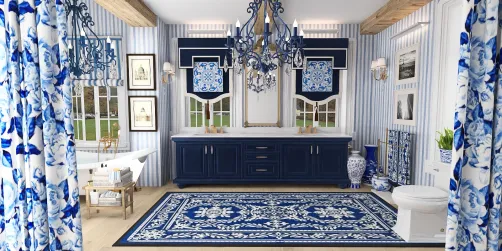
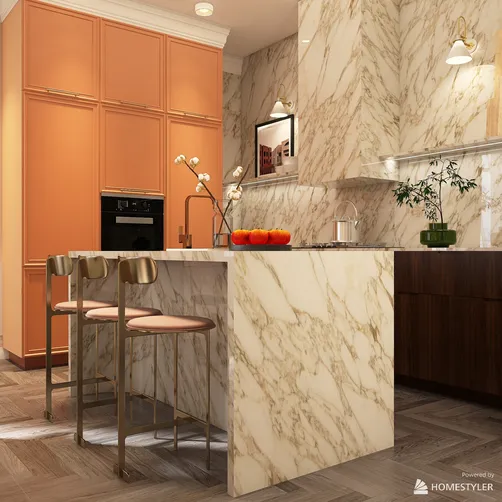
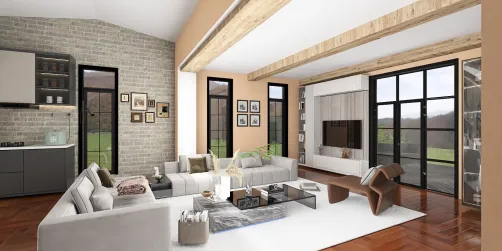
To work with 3D assets in GIMP, the first step is to transform your 3D model—whether it’s in formats like .obj or .fbx—into a GIMP-friendly format such as .png or .jpg. You can accomplish this by utilizing free software such as Blender. Load your model in Blender, set the desired scene, and render the output to save it as a .png file. Alternatively, for simpler designs, you can explore Homestyler to help design your 3D models before conversion.
Step 2: Open the Image in GIMP
After rendering your image, the next step is to open it in GIMP. Simply click on File -> Open and locate your saved image. GIMP will swiftly load your rendered image, allowing you to begin your editing process without delay!
Step 3: Edit Your Image
Make the most of GIMP's rich array of editing features to refine your image. Whether you are modifying colors, adding layers, or applying various filters, GIMP offers extensive options to enhance your 3D render. It’s crucial to save your project regularly to prevent any loss of your modifications.
Tips and Tricks
For optimal results, consider employing layers and masks within GIMP. This will let you adjust specific elements of your image without permanently modifying the original layer, offering greater flexibility in your overall design. Additionally, experiment with GIMP’s blending modes for innovative effects that can enrich the depth of your image and its appeal.
FAQ
Q: Can I edit 3D models directly in GIMP? A: Unfortunately, GIMP does not allow for direct editing of 3D models. You must first convert them to 2D images.
Q: Which formats can I transform my 3D models into for use in GIMP? A: Your 3D files can be converted into standard 2D image formats such as .png or .jpg prior to import into GIMP.
Q: Is Blender the sole tool available for converting 3D models? A: Although Blender is a widely-used option, other applications like Autodesk Maya and SketchUp can also export 3D models to the necessary 2D formats.
Q: How can I ensure the quality of my 3D model is retained when converting to a 2D image? A: Definitely! Make sure to set a high render resolution in Blender. This will maintain the quality of your graphics when exporting them to a 2D format.
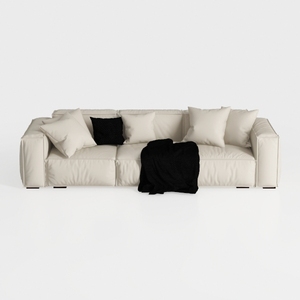

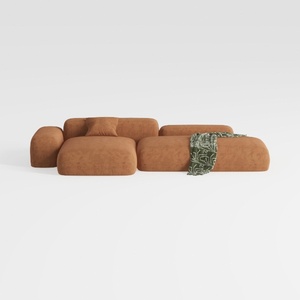
Discover the joy of home design with Homestyler! This user-friendly platform offers an intuitive online design tool, stunning 3D renderings, and a wealth of inspiring decor projects and DIY video tutorials. Transform your space effortlessly and unleash your creativity today!